🍴 Menu & QR Code
The system lets you manage a digital menu and generate QR codes that guests can scan on their phone to view the current menu.
Menu, weekly menu and the QR code appear only for the Restaurant business type. If you run a hotel, a salon, a clinic or an event venue you will not see this section in your admin panel and can skip this page. See Pick your business type.
Where do I manage the menu?
In the left menu, click on items in the Menu section:
- Menu Items — individual dishes and drinks
- Weekly Menus — composing a daily or weekly offering
Adding a menu item
- Go to Menu Items → Add Item.
- Fill in:
- Title — name of the dish or drink
- Description — ingredients, allergens, additional info
- Price — price in your primary currency
- Category — categorize it (soups, main courses, desserts, drinks, etc.)
- Click Save.
Weekly Menu
The weekly menu lets you compose the current offering for each day. Guests can view it on the website or via QR code.
- Go to Weekly Menus → Add Weekly Menu.
- Choose the day or week the menu applies to.
- Assign items from the menu.
- Save.
QR code for the menu
The QR code sends a guest to the always current menu on your website. Change an item in the admin panel and a code that is already printed does not have to be reprinted.
You'll find it under Menu → Menu QR code.
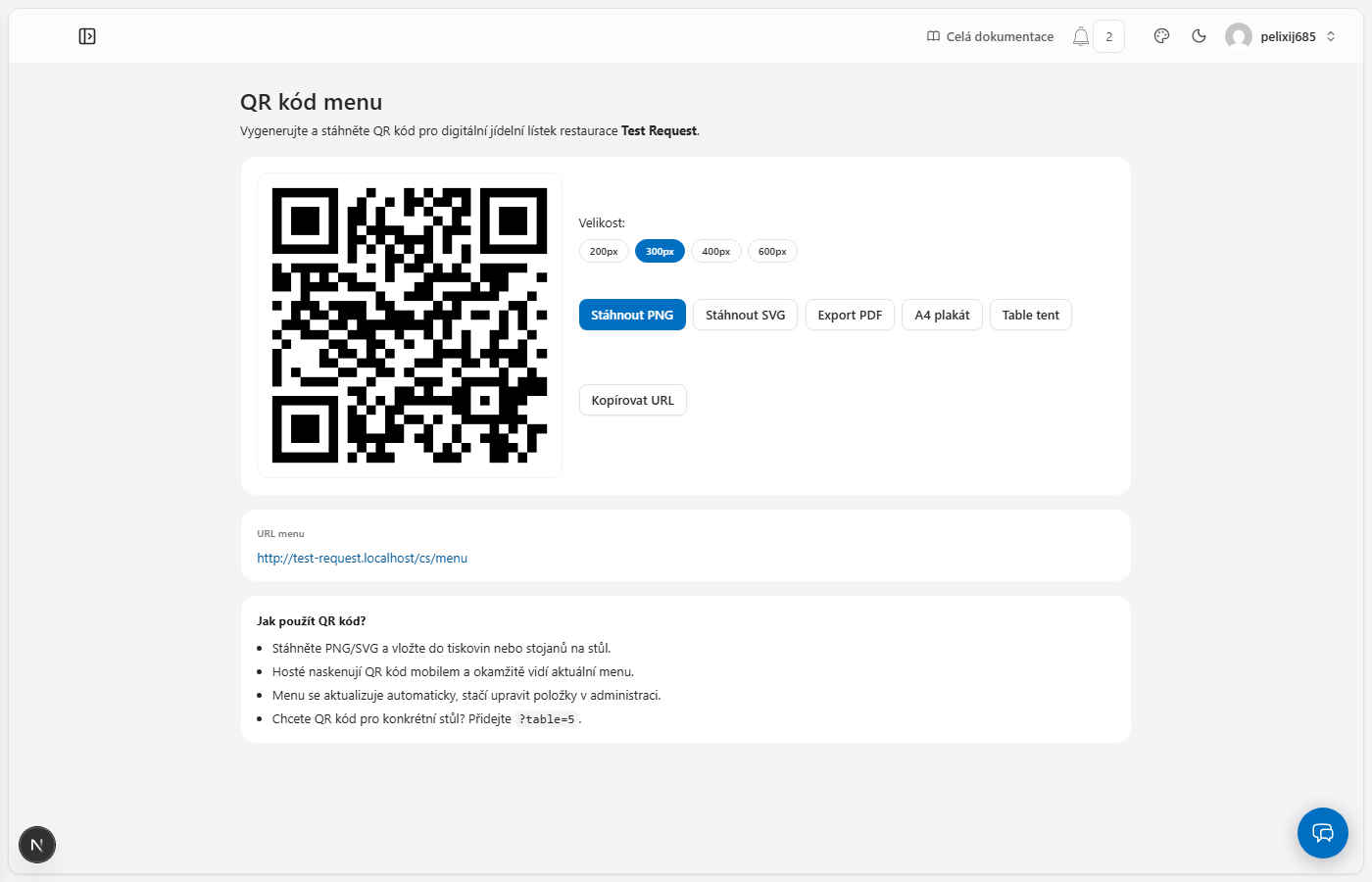
- Pick a size (200–600 px).
- Download it in the format you need:
- PNG for a document or social media,
- SVG for a print shop (scales without losing quality),
- PDF to print as it is,
- A4 poster for the door or a notice board,
- Table tent — a stand for the table, folded from one sheet.
- Copy URL copies the menu address when you need to paste it elsewhere.
Append ?table=5 to the menu address. A guest who scans that code is tied to that table when
they order.
Export weekly menu to PDF
The weekly menu can be typeset into a finished PDF for the board outside, the window or the tables — under Menu → Weekly menu — PDF. You pick one of five styles, one or two columns and what should be printed, with a live A4 preview beside it.
The whole thing, with screenshots: Weekly menu as a PDF.
Update the weekly menu every week. Guests can then view the current offering directly from your website or by scanning the QR code on the table.