📄 Weekly menu as a PDF
The weekly menu you keep in the admin panel can be typeset into a finished PDF — for the board outside, the window, an email, or printing for the tables. Nothing is retyped and nothing is exported into Word: the source is always the same offer your guests see on the website.
You'll find it under Menu → Weekly menu — PDF.
The menu, the weekly menu and this export appear only for the Restaurant business type. See Pick your business type.
What it looks like
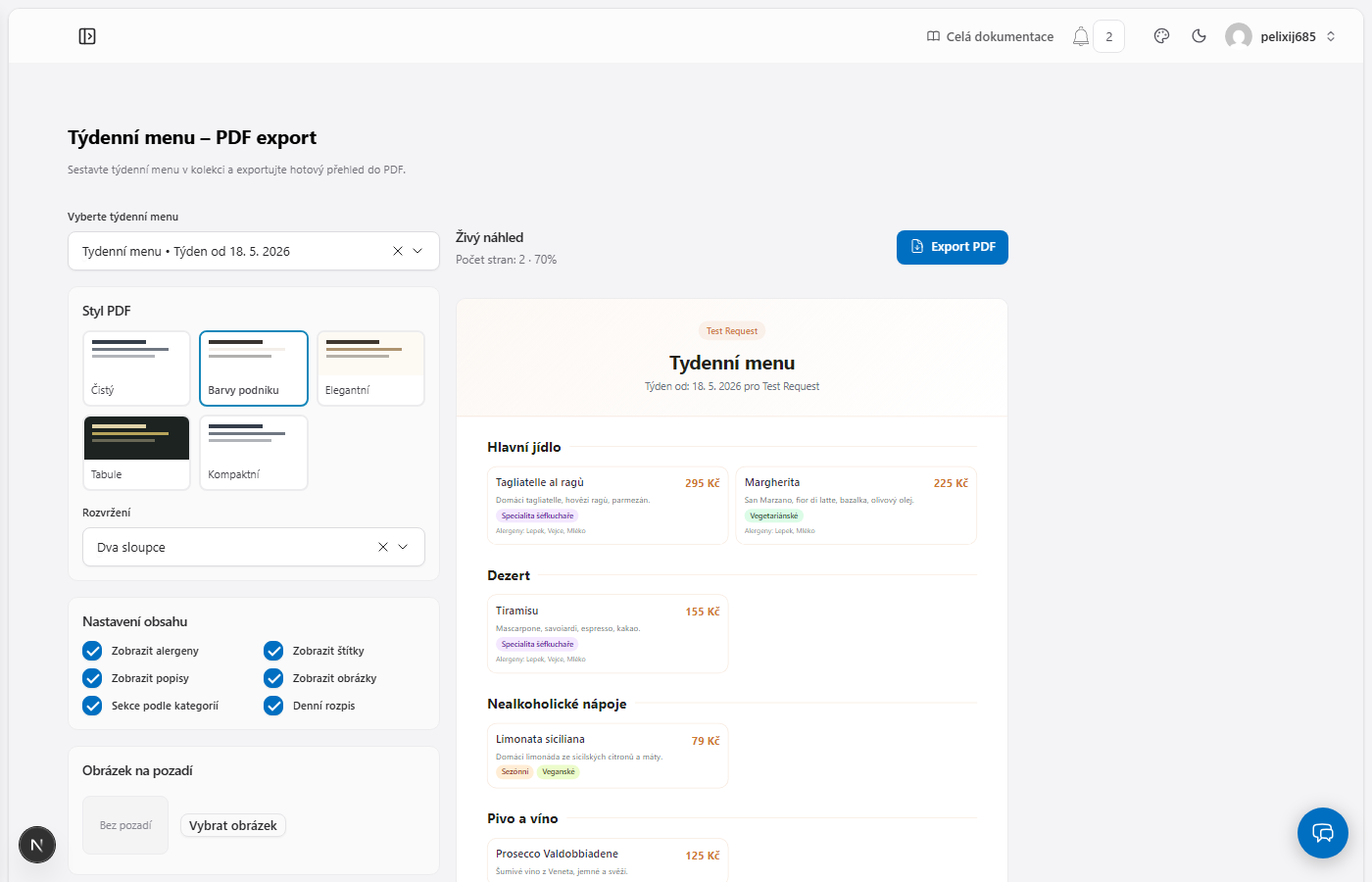
The options are on the left, a live preview on the right. The preview is a real A4 page — what you see is the size it prints at — and the horizontal rules in it show where the PDF breaks onto the next page. The page count above the preview tells you the menu no longer fits on one sheet before you print it.
How to do it
- Pick the weekly menu to typeset. The list comes from Menu → Weekly menus.
- Choose a style, a layout and what should be printed (below).
- Check the preview.
- Export PDF — the file downloads to your computer.
Styles
Five ready-made looks. They differ in typeface, colour, framing and header; the content is the same in all of them.
| Style | When it fits |
|---|---|
| Clean | A neutral black-and-white sheet. Cheapest to print and the easiest to read. |
| Brand colours | Takes the colours of your website, so the menu looks like the rest of your brand. |
| Elegant | Serif type and dotted leaders to the prices — the classic menu look. |
| Chalkboard | Light type on a dark ground, like a chalk board. |
| Compact | The most items per page. For when a long offer must not break onto a second sheet. |
Layout then decides whether it is set in one column or two.
What gets printed
Six switches under Content. Turning things off is how you keep the paper to the point — a board by the door usually needs a name and a price and nothing else.
- Show allergens — allergen numbers next to the items.
- Show tags — vegetarian, vegan, seasonal, chef's special…
- Show descriptions — the text under the dish name.
- Show images — item photos, where you have uploaded them.
- Sections by category — Starters / Mains / Desserts headings.
- Day breakdown — split by day (Monday to Sunday) instead of one combined list.
Background image
You can put a photo behind the menu — a wooden table, the room, anything from your media library. To keep it readable it is covered by a wash whose strength you set with a slider. The higher it goes, the further the photo recedes.
For an ordinary office printer, keep the wash strong. A photo that looks subtle on screen comes out darker on paper and the text disappears into it.
FAQ
There is nothing to pick. Build a weekly menu first under Menu → Weekly menus. See Menu and QR code.
The menu breaks onto two pages and I want one. Try it in this order: the Compact style → two columns → turn off images → turn off descriptions. The page count above the preview updates immediately.
Can I email the PDF to guests? Yes — attach the downloaded file to a newsletter.
I changed a price and the PDF still shows the old one. The PDF is typeset from the current data at export time. Save the change under Menu → Menu items and reload the export page.
Besides the PDF, the menu also has a QR code — it sends the guest to the always-current offer on your website, so it never has to be reprinted.